
User Registration
To manage users, go to the sidebar menu. Click on the users section and select Administration. A table will be displayed from which we can register a user; to do this, within the “Users” section, click on “Add”.
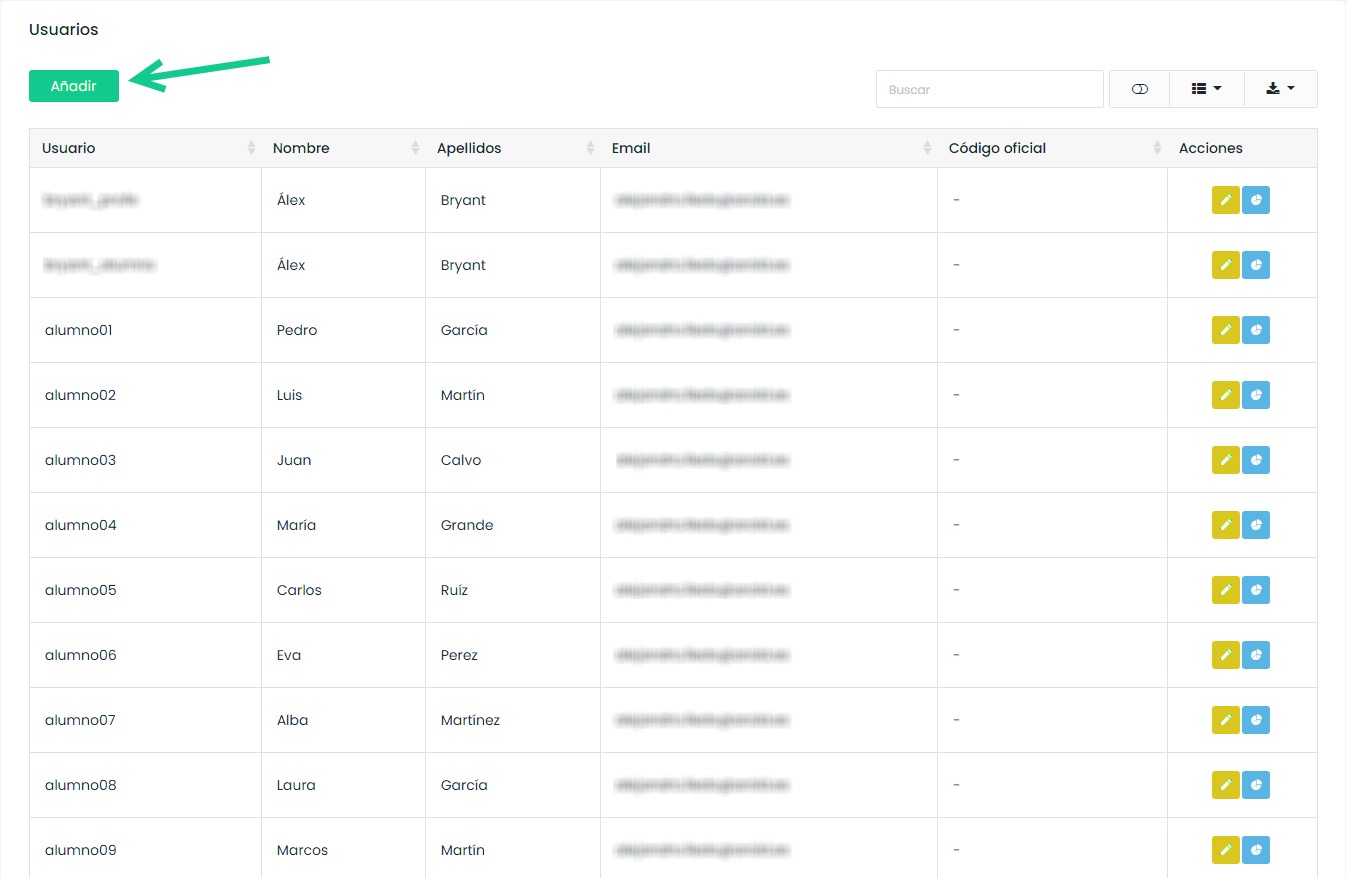
A form will be displayed where we can register a user with their personal data. Fields marked with (*) are mandatory.
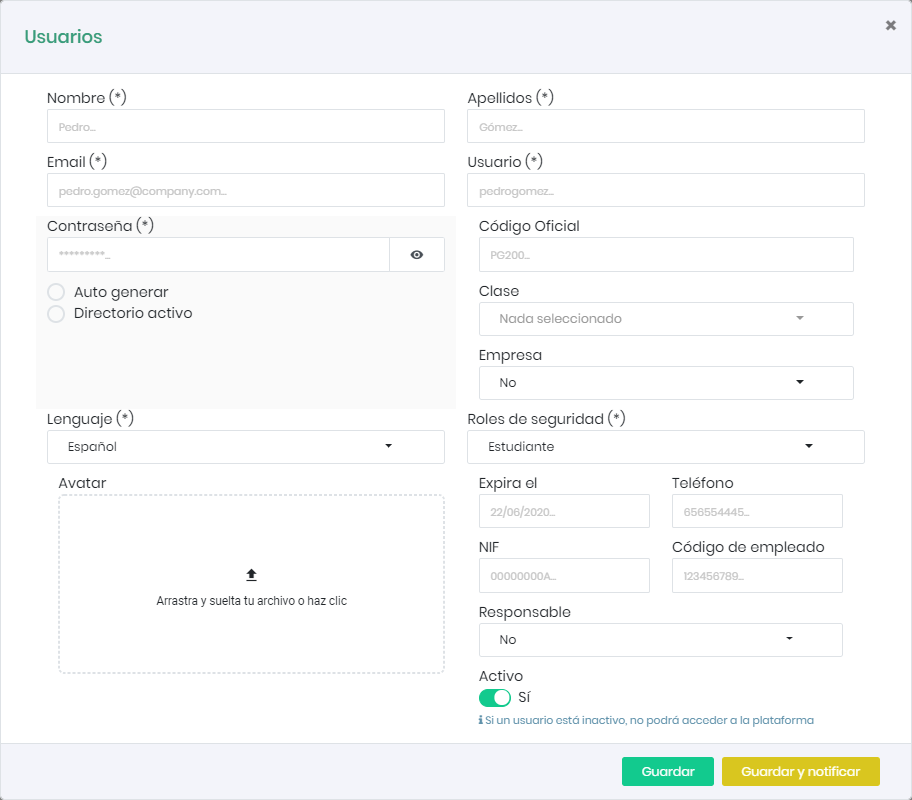
If the platform is integrated with the company’s own authentication system, you can select “Active Directory” for the password, so that the same password can be used for multiple systems.
NOTICE
Since this functionality requires synchronization with the corporate intranet, it must be configured beforehand by the platform provider.
The user must be assigned a security role (Teacher, Student, Administrator, etc.). If a role with specific permissions is desired, the platform administrator can create it beforehand.
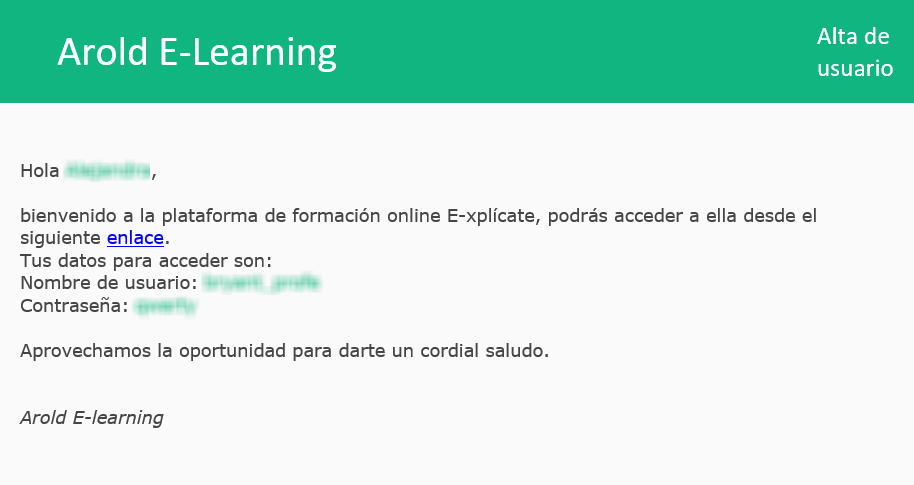
After clicking “Save,” the user is registered on the platform. If you select “Save and notify,” an email with the user’s access data is automatically sent to the user.
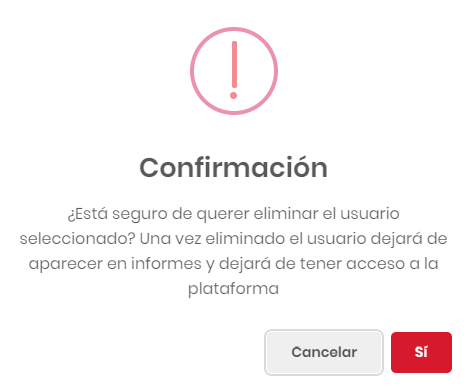
The platform is configured so that the system will NOT allow user deletion, except for administrators. To do this, select the users you want to delete and click “Delete selected.” After accepting the confirmation, the user will be deleted.
Bulk User Import
It is possible to register users in large groups through a CSV template.
To download the template, click the indicated button.
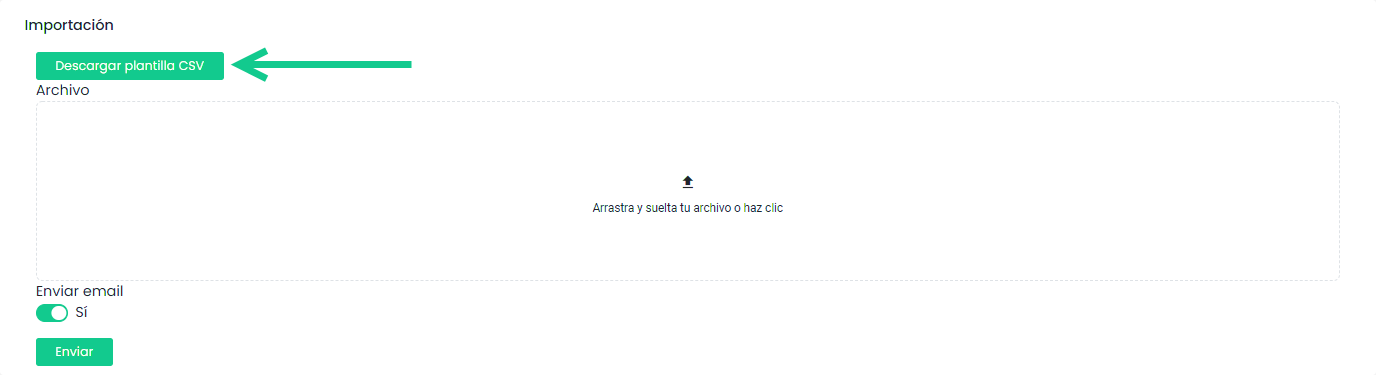
Mandatory fields will be marked with asterisks. It is important to maintain the cell format (e.g., dd/mm/yyyy).

The columns “active” and “activeDirectory” will be filled with the values 0 or 1, with 0=no and 1=yes. These fields correspond to the user’s status (active/inactive) and Single Sign On, meaning whether we want the user to access the platform through an “employee access” button when they are already logged into the company’s corporate intranet.
NOTICE
Since this functionality requires synchronization with the corporate intranet, it must be configured beforehand by the platform provider.
Once the desired fields are filled out (those left blank will appear empty), simply drag the file from your computer to the drop area and click submit. We can choose whether to notify users of their registration on the platform or not.
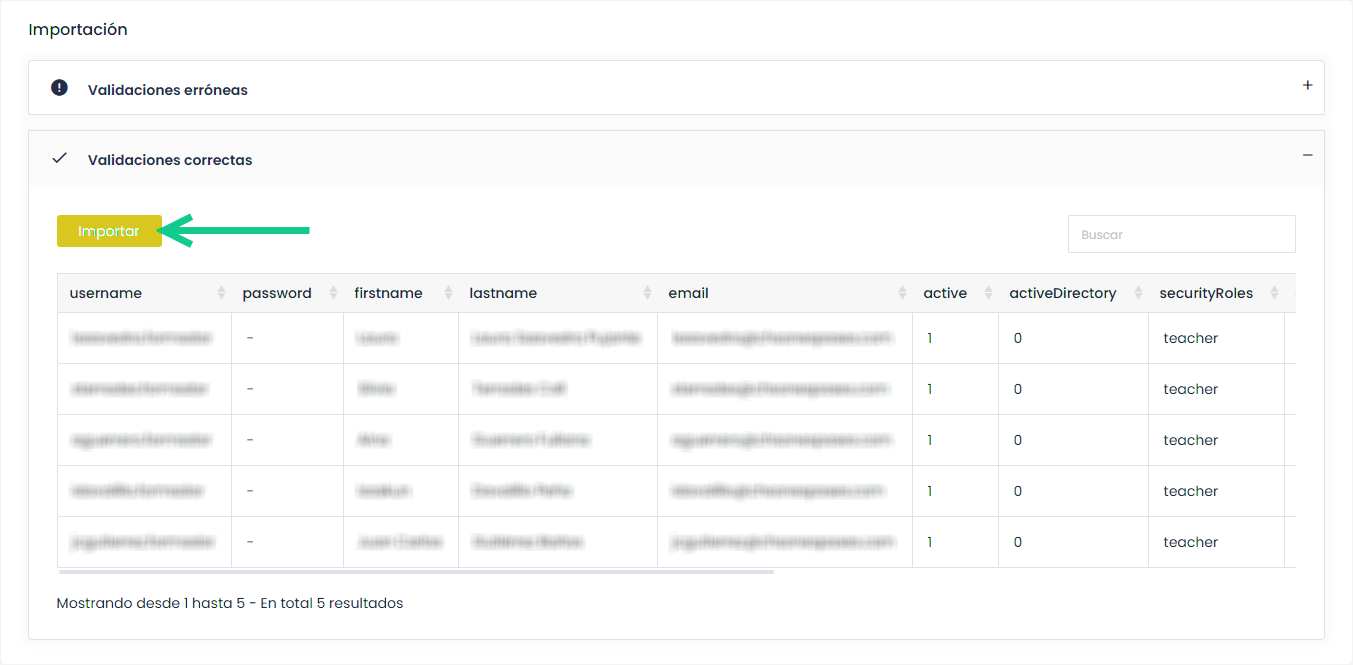
After validation, an error table and a valid records table will be displayed. If we agree, we click import. Otherwise, we edit the CSV and repeat the process.