Survey Report
There are two types of reports for surveys, depending on whether they are anonymous or not. Anonymous surveys, which do not store user data, cannot be viewed in the detailed user report.
To view the reports of an anonymous survey within a course, click on the survey report icon from the list of lesson components.

You will see the name of the survey and the number of users who have completed it.
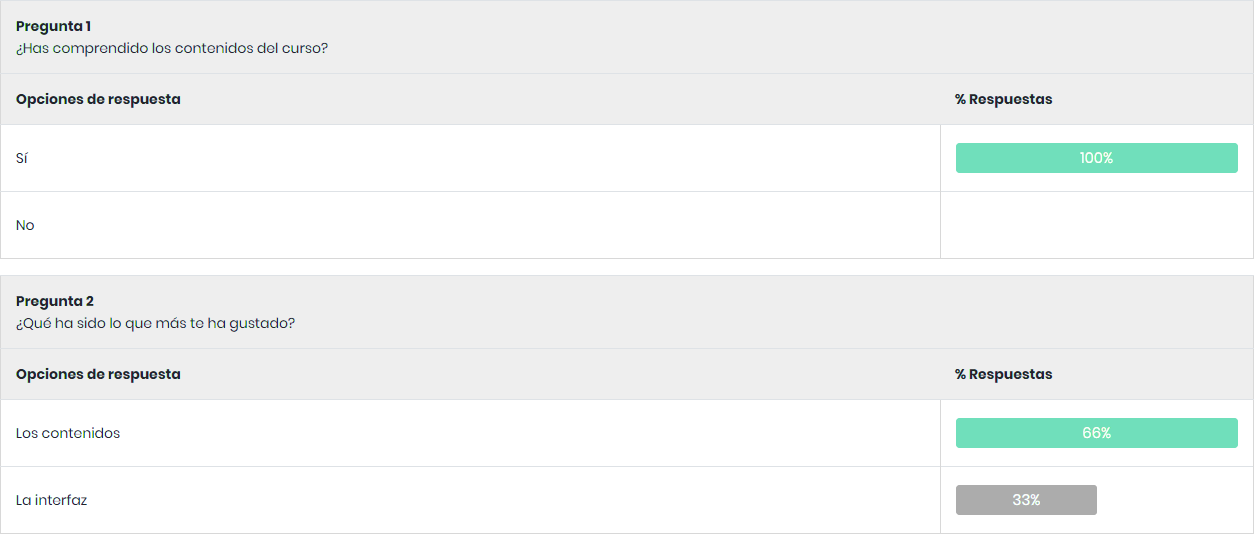
Next, all the questions that make up the survey will be displayed, along with the average score given by the users.


To view non-anonymous surveys, do so from the user report in the course.
In the course lesson report, under the survey section, click on the reports icon.
If desired, the report can be downloaded in .csv format by clicking on the indicated icon.

The survey questions will be shown in the first row, and below, the users’ answers. The results of the rating questions will be displayed as X#Y, where X is the score given by the user and Y is the maximum possible score.