
Reports

Our LMS allows teachers to monitor their students’ progress using the Reports tool.
We can access course reports in several different ways.
You can access course reports from the reports section in the sidebar menu, but you can also directly access the reports of a specific course or user from “Course Administration” or “User Administration” respectively, by clicking on the Reports icon of the course or user you are interested in.
If you access from the “Reports > Users in Course” section, a table with all user records in courses will be displayed. Since there is a lot of information, we must filter it using the filter icon located in the upper right corner.

A sidebar menu will appear with a series of elements that we can use to filter the information.
- User / Course
- Course
- Class
- Course Status
- Company
- Days to Expiration
- Dates
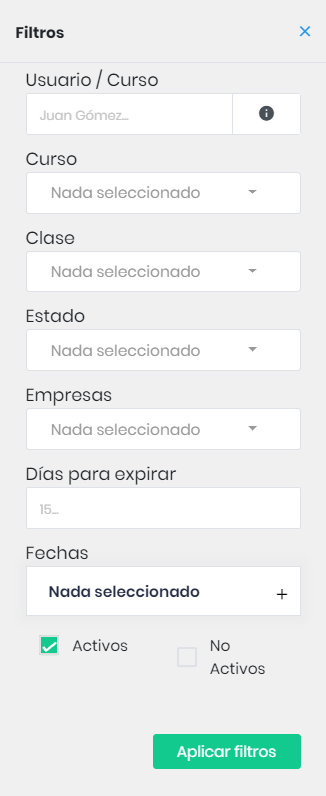
This way, we can choose only the information we want to view. Once satisfied, we apply the filters.
To export all the information in CSV or PDF format, click on the download icon.

The report request will be processed in the background. We can see the status of the request and download the report when it is available on the “Requested Reports” page.
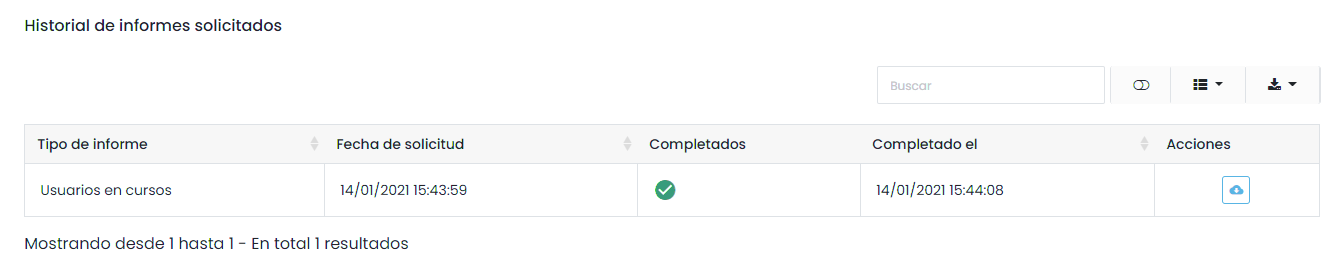
From the reports section, we can also export student certificates.
The platform offers the possibility to download certificates for a group of students from the sidebar menu “Reports > Student Certificates,” using the Filters tool.
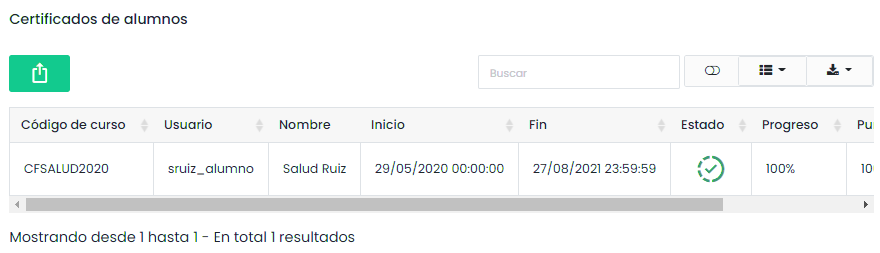
The report request will be processed in the background. We can see the status of the request and download the file when it is available on the Requested Reports page.