Meetings

e-xplicate is compatible with Zoom and Microsoft Teams. To use these features, a prior configuration by the platform provider is required. You can contact the support service to request activation or to receive further information.
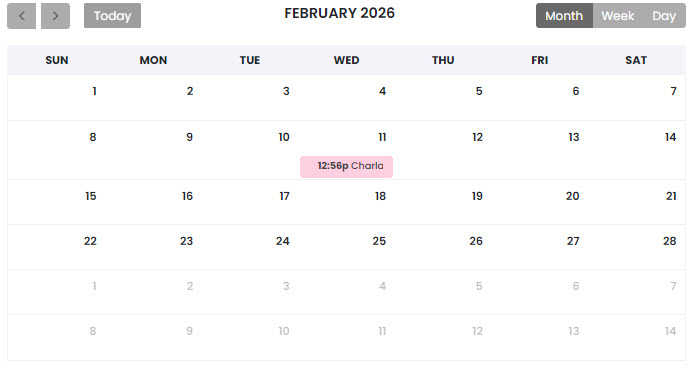
Once the video call provider has been selected in the course settings, a new lesson component called Meetings will become available. When accessing this component, a calendar with the scheduled sessions will be displayed along with the Manage meetings button.
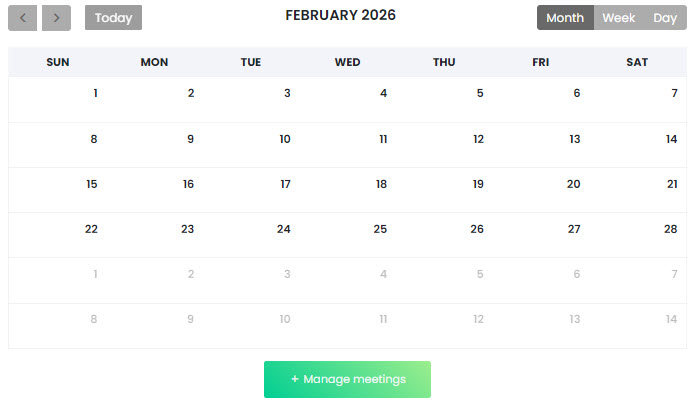
Clicking Manage meetings will open the sessions table, where you can add, edit, or delete entries. To create a new session, click Add and complete the form.
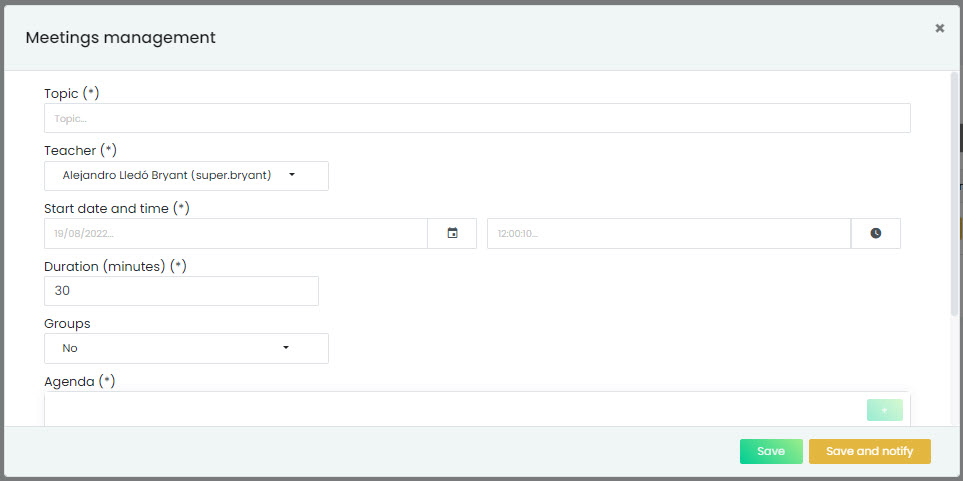
In this form, you will be able to define the meeting topic, as well as its date and time. You will also find an Agenda field where you can include preliminary information or the content to be covered.
After completing the setup, the meeting must be saved. Optionally, you can enable automatic notifications for attendees (students enrolled in the course).
Once scheduled, the meeting will appear in the sessions table and will also be visible in the calendar.