
Test Report
To review the answers to a test within a course, there are several ways. The most direct way is to check the user’s report online.
First, locate the user and the course you want to inspect. Once found, click on the reports icon to access the lesson components, and in the test row, click on the magnifying glass icon.

A table with all attempts made by the user on the test will be displayed. To review a specific attempt, click on the magnifying glass icon. If you want to delete this test attempt to allow new attempts, click on the trash icon.
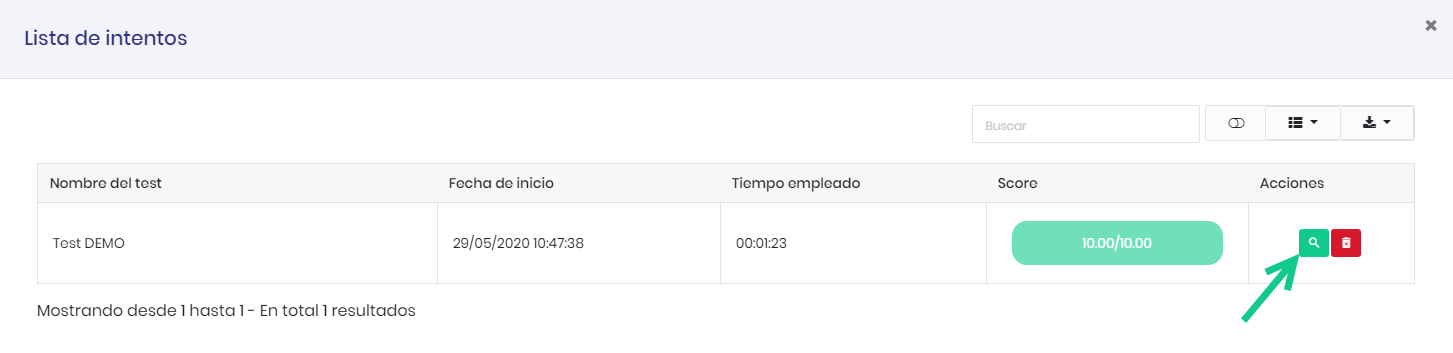
The test details will be displayed.
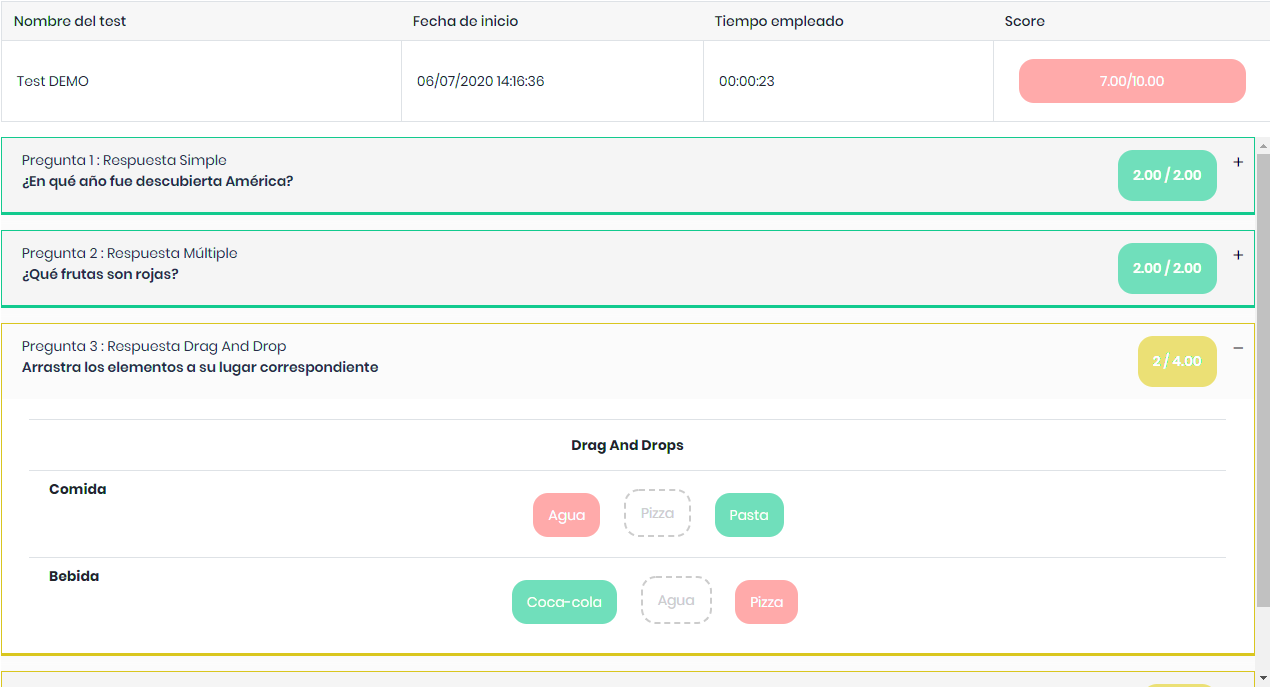
You can see the total test score as well as the date it was taken and the time spent.
Next, you will see the details of each question. Incorrect answers will appear in red. If partial points were received, they will appear in yellow. If full points were received, they will appear in green.
Review Exercises
The platform also allows viewing an exercise report to understand which tests are most passed and most failed.
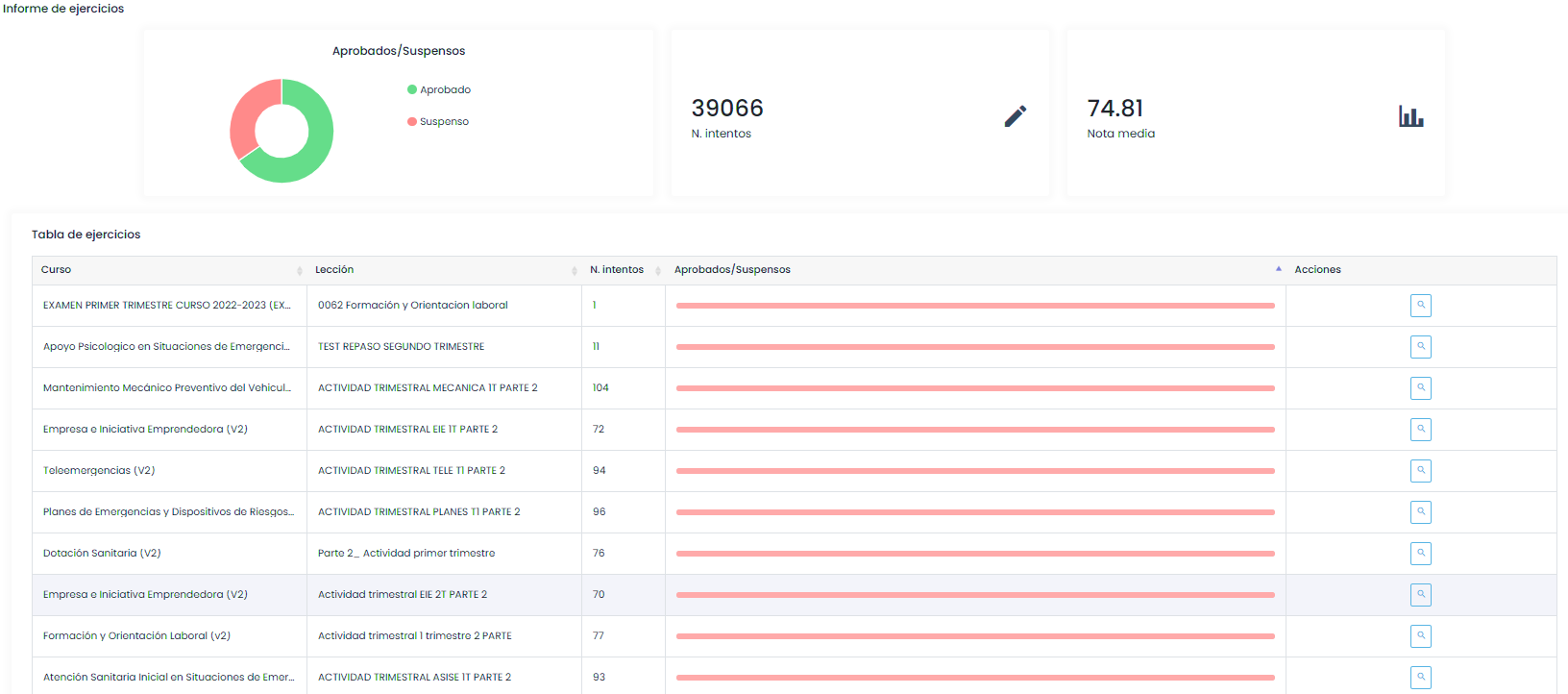
You can use the filter panel to adjust the report to the query you need.
Access this report from the sidebar menu, Reports > Exercise Reports.